
Formatting redaction boxes in your productions
If you have placed redactions on your documents (learn how to do so here), they will be applied during the production process. (Find out about the production process here.) You will be given a few redaction-formatting options in Step 7. ("Choose how redactions will behave in this production.")
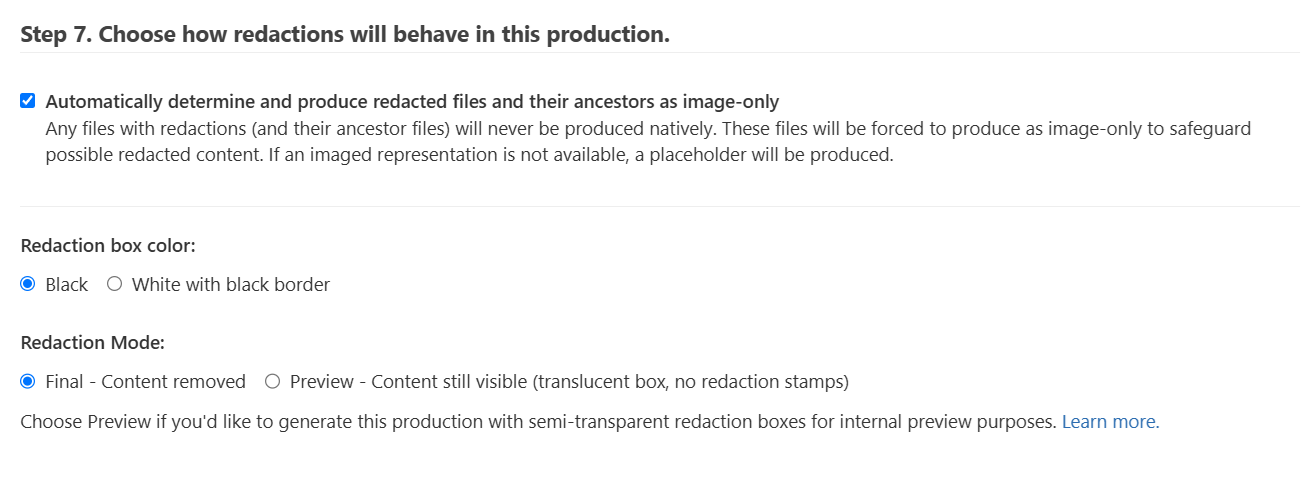
Redaction mode
1. Final Mode
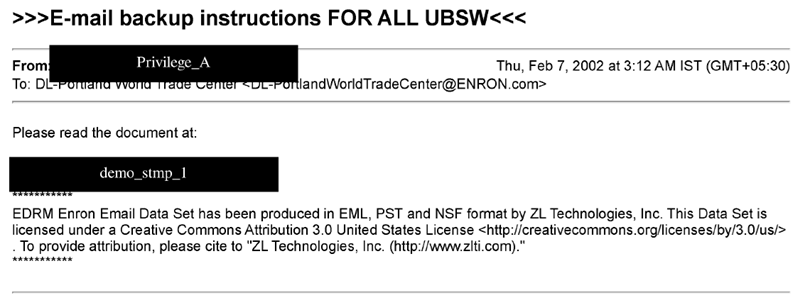
The full redaction process will be carried out on your files. All redaction boxes present in your produced documents will become opaque, and all text covered by the redaction boxes will be completely removed from files, becoming impossible to read or search for. Redaction stamps added during redaction will be printed on the redaction boxes.
Redaction box color
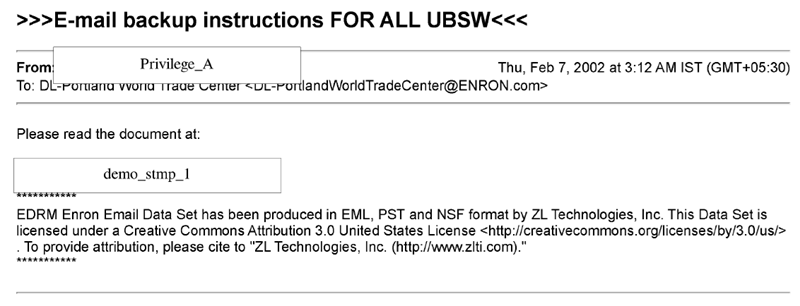
If you choose the 'Final' Mode for your production, you can set the color of the opaque redaction box to either:
- Black or
- White with black border
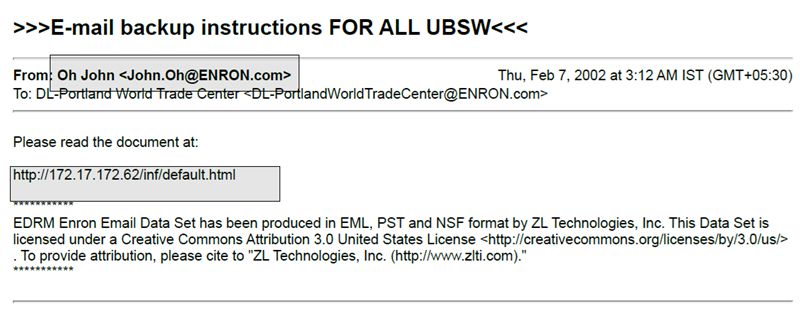
2. Preview Mode
Selecting the 'Preview' Mode will make redaction boxes in your produced documents translucent. Text in your files will stay accessible, visible, and searchable. The redaction boxes will simply indicate the area that would be covered if the 'Final' Mode were selected. (This option is usually used for internal review purposes.) Redaction stamps added during the redaction process will not be printed on the translucent redaction boxes
If Preview Mode is selected, the warning below will be displayed:

NOTE: If you choose a native format for your production (in Step 3, Production Output of the Production Wizard), files with redactions will be produced as image-only (Learn more about native productions here).