
GoldFynch imports standard load-file productions. It cannot directly import a Relativity ARM archive, a Relativity workspace database, or other proprietary Relativity backup formats.
If you already have a standard load-file production ready to upload, skip ahead to Required Export Components.
What is a Relativity ARM Archive?
A Relativity ARM archive is a proprietary workspace backup format used to restore a Relativity workspace into another Relativity environment. It may include the workspace database, repository files, and other information needed to recreate the workspace in Relativity, but it is not a standard production format and cannot be imported directly into GoldFynch.
If your Relativity vendor offers a choice of export formats, ask for a standard load-file production format instead of an ARM archive. You can avoid the extra restore step entirely.
Converting an ARM Archive into a usable export
If an ARM archive is all you have, it needs to be first processed in Relativity before you can import any data into GoldFynch:
- Restore the ARM archive in a Relativity environment.
- Export the documents from Relativity as a standard Concordance or Relativity load-file production.
- Include the load files, native documents, images, extracted text, and all other referenced files in the export.
- Package the complete production into a ZIP file for upload to GoldFynch.
Do not upload the ARM file itself to GoldFynch; it needs to be restored and re-exported first.
What is a Load file?
A load file is, in essence, a spreadsheet or similar file that contains data about the files in the production. It lets you know how to associate documents with their metadata, native files, images, and extracted text. Most eDiscovery platforms, including Relativity, export productions as load files rather than raw documents, so a load-file production is the standard way to move a case between platforms.
Required Export Components
A complete Relativity export should include:
Document-Level Load File (.DAT or .CSV)
A document-level load file contains the document records and metadata. It commonly contains information such as:
- Document identifiers
- Bates numbers
- Custodian information
- Document dates
- Email metadata
- Native-file paths
- Extracted-text paths
- Other fields exported from Relativity
Image Load File (.OPT)
An image load file is required if the production contains TIFF images or other page-level document images. It links each image to its document and preserves page order.
Native files, images, and extracted text
The actual documents referenced by the load file are usually organized in folders such as:
NATIVESIMAGESTEXTDATA
Folder names can vary, but every file referenced by a path in the DAT or OPT file must be present in the ZIP.
Upload the entire production rather than selecting only the native files. GoldFynch can use an image or an extracted-text version of a document when the native file isn't available; omitting these can result in missing documents, incomplete text, broken image references, or missing metadata.
Example Folder Structure
A typical Relativity export prepared for import may look similar to the following:
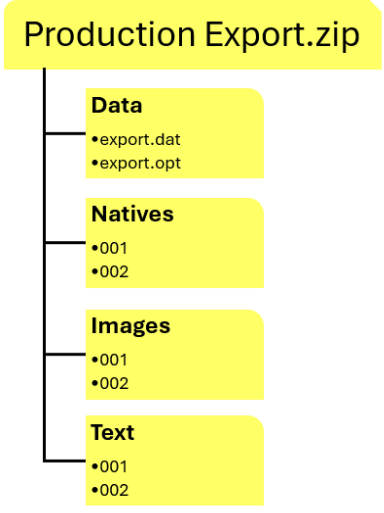
The load files may also be placed directly in the root of the ZIP file instead of inside the DATA folder.
Verify File Paths Before Uploading
The paths listed in the DAT and OPT files must match the actual folder structure in your ZIP. For example, if the DAT file references:
NATIVES\001\ABC000001.xlsx
That file must exist at the corresponding location within the uploaded ZIP file.
If a path is broken or incorrect, GoldFynch won't be able to associate that document with its native file, image, or extracted text; the document may still import, but with that piece missing. If you notice missing natives, images, or text after upload, this is the first thing to check: reopen the DAT/OPT file and confirm the referenced paths line up exactly with your folder structure, including subfolder names and file extensions.
You can validate the load file using our free load file viewer.
Uploading the Export to GoldFynch
After confirming that the production is complete:
- Place the full production folder structure into a ZIP file.
- Upload the ZIP file to the appropriate GoldFynch case.
- Let GoldFynch process the files and identify the load-file production. See instructions for importing a load-file production.
- Review the imported documents, metadata, images, native files, and extracted text to confirm that everything came through as expected.