
GoldFynch is currently available only in English, but that doesn't mean you're restricted reading it only in English. Most modern browsers have a built-in translation feature that can display any webpage, including GoldFynch, in the language of your choice. Once enabled, the translation runs automatically and updates as you navigate through the app.
Here's how to turn on translation in a few common browsers.
Google Chrome
- Open GoldFynch in Chrome.
- Right-click anywhere on the page and selectTranslate to [Language].
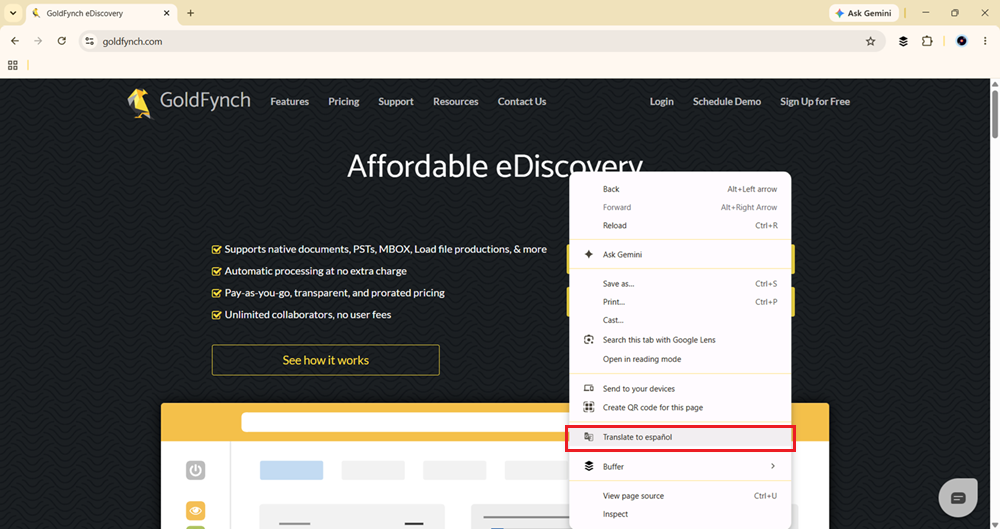
Alternatively, click the translate icon in the address bar.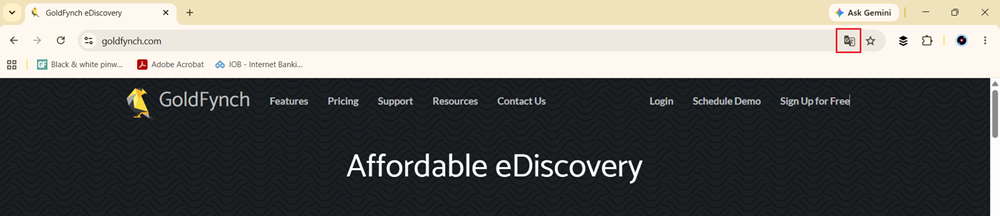
Note: If the translate icon is not visible in the address bar, click the more options icon in the browser's top-right corner, then select 'Translate...'.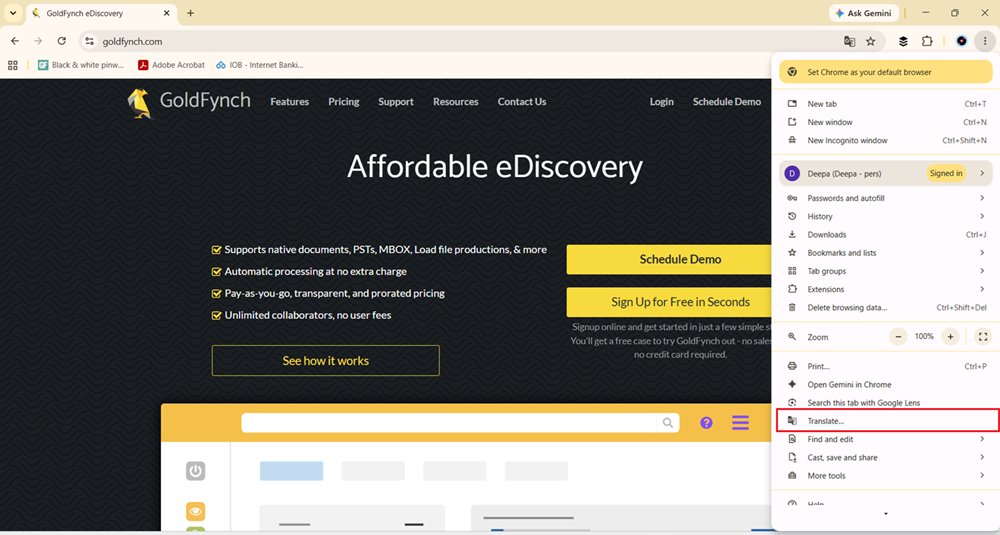
- If your preferred language is already displayed in the pop-up, click on it, and the page will be automatically translated to the selected language.
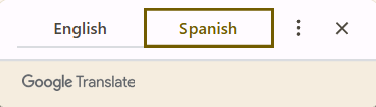
Alternatively, if you want to choose another language, click on more options, select 'Choose another language', and then select the language from the list in the drop-down. Once you select the language, the page will automatically be translated to it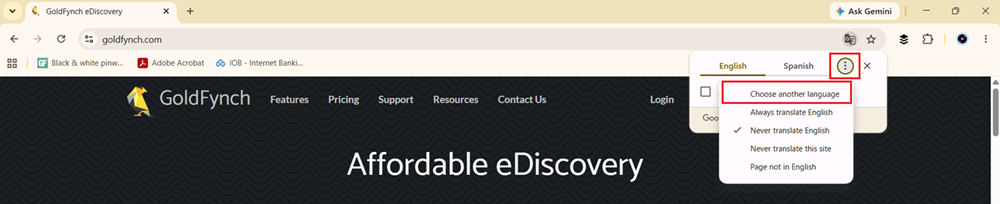
Microsoft Edge
- Open GoldFynch in Edge.
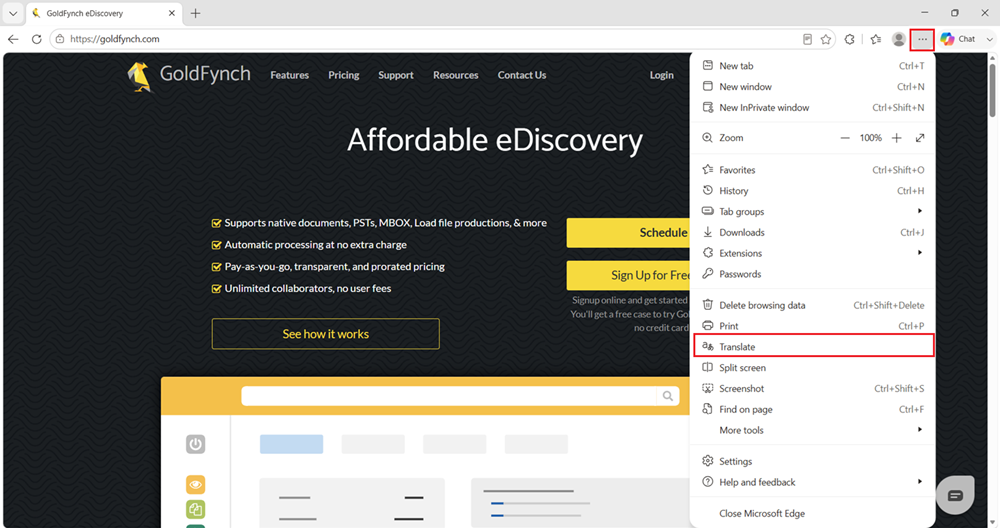
- Click the translate icon that appears in the address bar (it looks like a small "A" with a translation symbol).

- Select your preferred language from the drop-down and click Translate.
Note: If the translate icon is not visible in the address bar, click the more options icon, and then click 'Translate' to add it to the address bar
- Open GoldFynch in Mozilla Firefox
- If the preferred language for your browser is the language you would like to view GoldFynch in, then the translate icon will automatically appear in the address bar. Click the translate icon, then click the translate button in the pop-up.
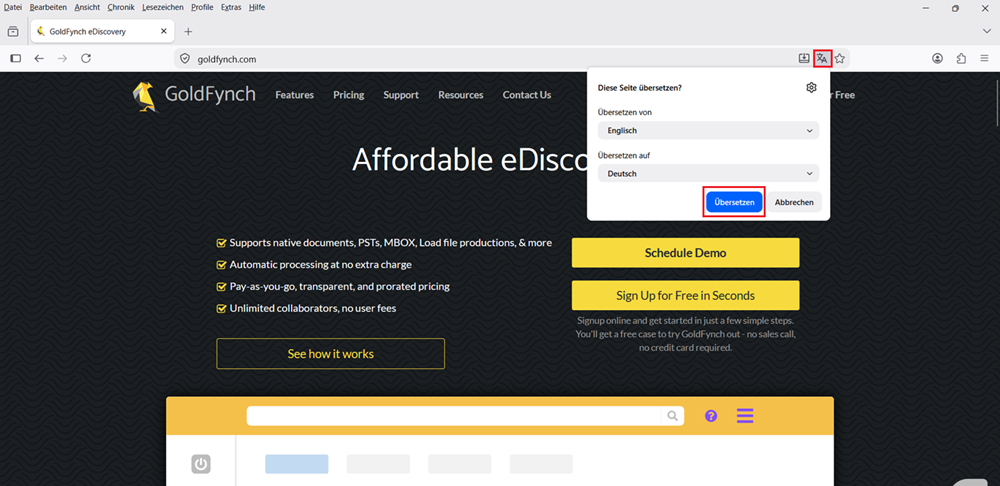
Alternatively, if the translate icon is not visible in the address bar:
- Click the three-line menu in the top-right corner, then select Translate Page.
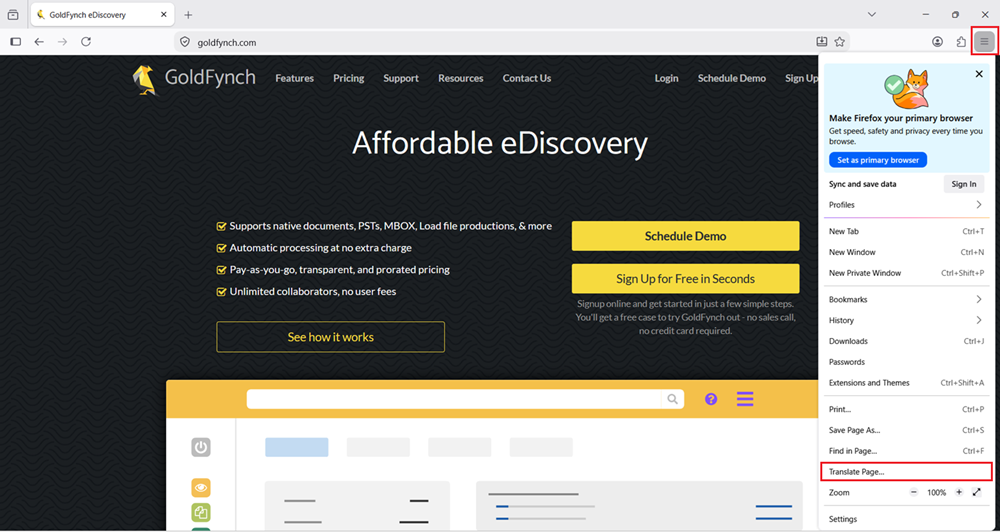 Pick your language from the list.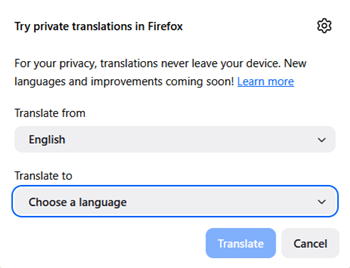
Safari
- Open GoldFynch in Safari
- Click on the Translate icon in the Smart Search field
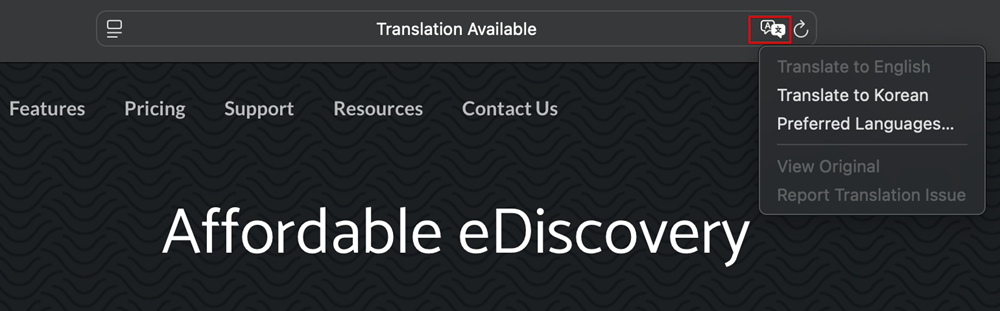
- Choose the language
Learn how you can add more languages to your translate menu in Safari here.
Note: Since GoldFynch's interface text is translated by your browser rather than by GoldFynch, translation quality depends on the browser and language pair. Case data, document text, and search results are not affected by this setting and will always display exactly as they exist in your case.
If you run into any trouble getting translation to work, feel free to reach out to us at support@goldfynch.com, and we'll be glad to help.