
The Document Viewer has a built-in 'Find in document' tool that lets you search the file you're currently viewing, so you don't have to leave it to search for a specific word or phrase when reviewing a document in GoldFynch. This feature is especially useful when you're working through a long PDF and need to jump straight to the relevant passages.
Using the 'Find in document' function
1. Open any document in the GoldFynch Document Viewer.
2. Click the 'Find in document' (magnifying glass) icon in the viewer's toolbar
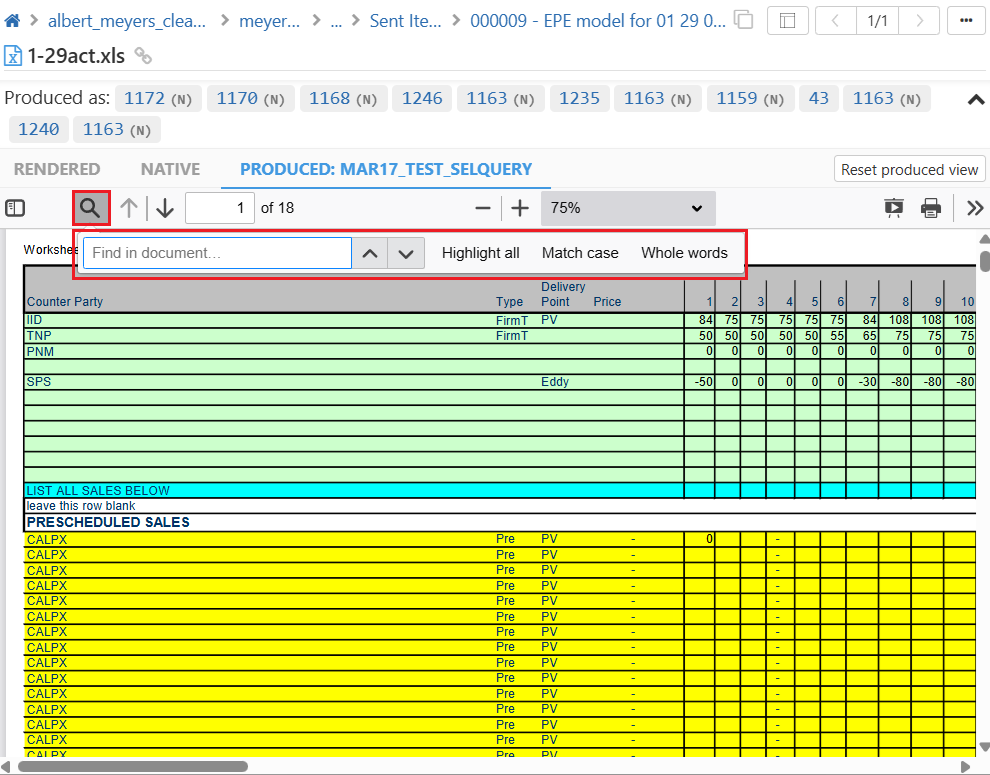 3. Enter the keyword or phrase in the search bar
As you type the keyword or phrase, the document view will jump to the first match and highlight it. The search bar will also show the number of matches that have been found, and you can use the up and down arrows to step through the matches.
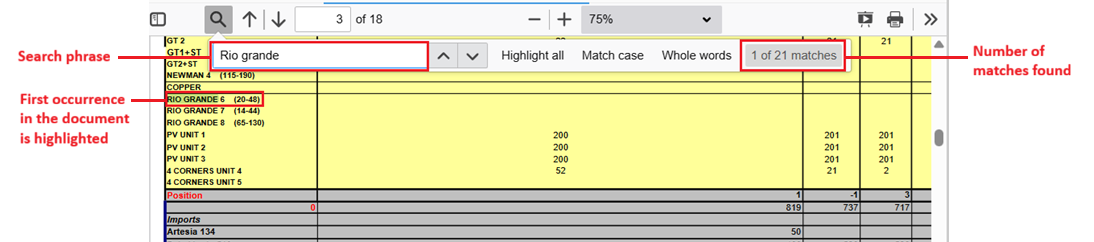
Refining your search
Clicking the 'Find in document' tool unlocks four additional options that help you narrow down results. This is particularly handy when you're scanning a large PDF and a plain keyword search returns too many hits:
- Highlight All - highlights every match in the document at once instead of just the active one, so you can see at a glance where your term appears throughout the file.
- Match Case - makes the search case-sensitive. Searching for `Smith` will skip over `smith` or `SMITH`.
- Match Diacritics - treats accented characters as distinct. Searching for `resumé` will not match `resume`, which is useful for multilingual documents and foreign names. (Note: this function is only available when you use the 'New Viewer')
- Whole Words - only returns matches where your term appears as a complete word. Searching for `act` will not match `action`, `contract`, or `factor`.
You can combine any of these options. For example, turning on 'Match Case' and 'Whole Words' together is a quick way to find every standalone reference to a proper noun in a long deposition or contract without getting buried in partial matches.
Note: Learn more about the document viewer and its functions, and how to customize its layout.
When this is most useful
'Find in document' is built for the moment when you've already opened a document and just need to locate something within it, such as a name, a date, a defined term, or a clause. For a large PDF (think long deposition transcripts, lengthy contracts, or scanned reports with OCR text), it's far faster than scrolling, and the refinement options let you cut through noise that a basic search would surface.
Tip: 'Find in document' searches the document you currently have open. To search across your entire case, use GoldFynch's case-wide search instead.